Documentation
Connecting Azure DevOps
To use Mr. RIGANTI in your Azure DevOps, you need to connect the service and configure the user account. Start by clicking on Connect Service button.
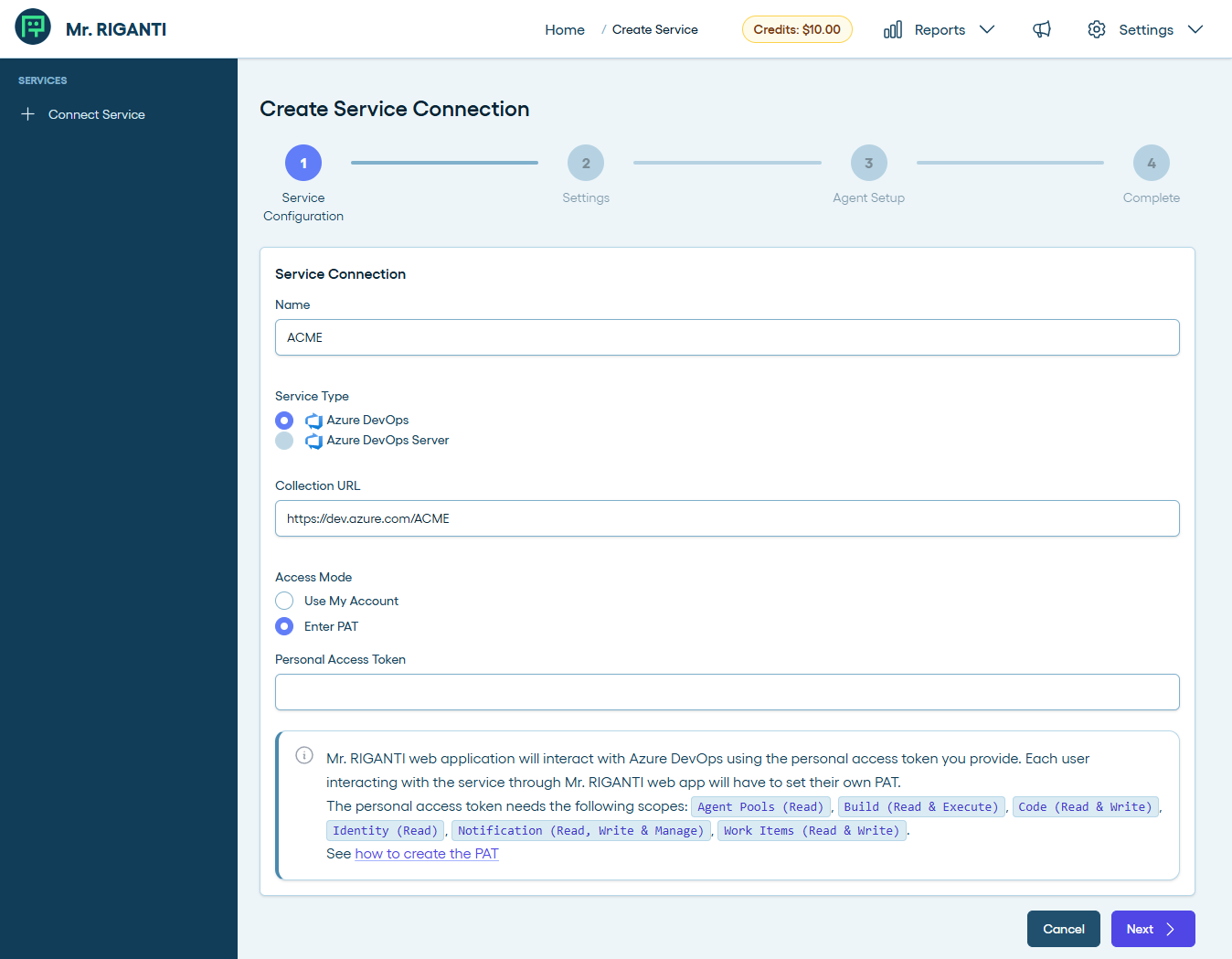
On the first step, name your Azure DevOps instance (any name can be used) and enter its URL (the format is https://dev.azure.com/YOUR_COMPANY.
Make sure you are signed with an Azure Entra ID account that has access the Azure DevOps instance.
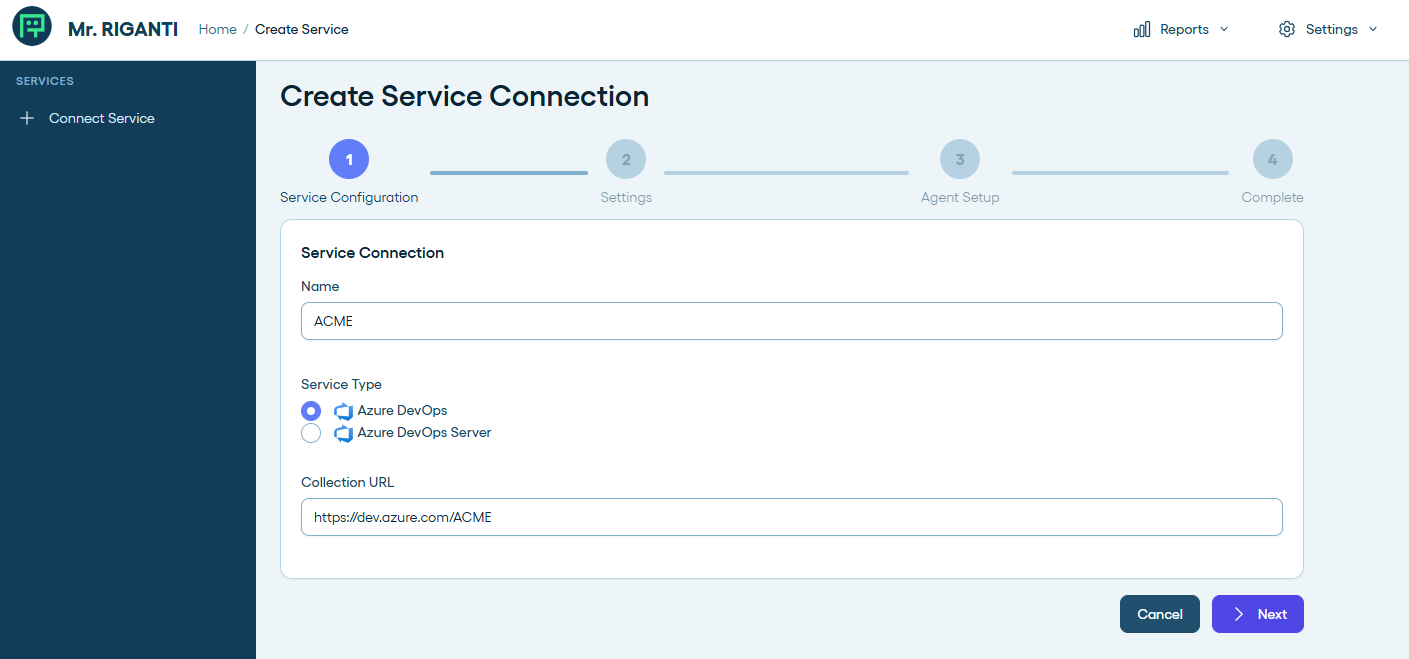
Option 1: Connect using Use My Account access mode
Select Use My Account to let Mr. RIGANTI web application interact with Azure DevOps on your behalf using the same Microsoft work account you used for signing in.
This is the easiest way, but it requires you to allow Mr. RIGANTI the Azure DevOps delegated API permission Access Azure DevOps (user_impersonation). This permission basically allows Mr. RIGANTI to call the Azure DevOps API as you. The application can perform only the operations that your account is allowed to perform in the selected Azure DevOps organization. Depending on your organization's consent policy, an administrator may need to approve the permission.
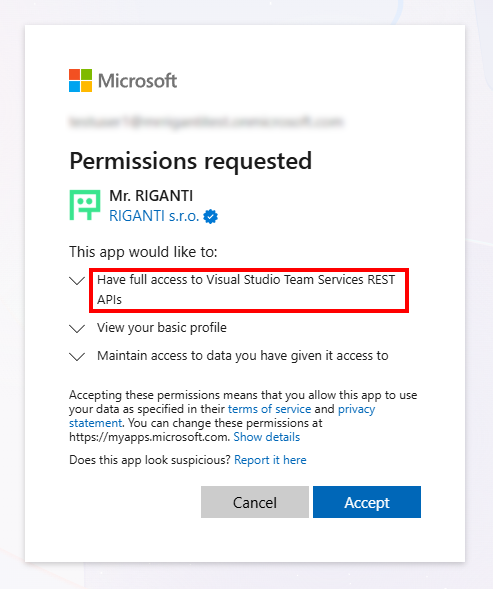
This option is not supported when Azure DevOps organization is hosted in a different Azure Entra ID tenant than the account you used to sign in to Mr. RIGANTI.
Option 2: Connect using Personal Access Token access mode
If the first option cannot be used, select the Enter PAT to connect without granting the Azure DevOps delegated API permission.
You will need to create a personal access token in the Azure DevOps organization using the account you normally use to interact with Azure DevOps.
- Open a new browser tab and navigate to your Azure DevOps organization.
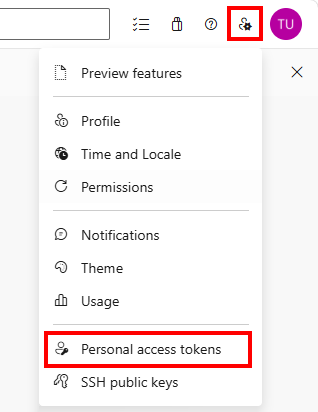
- Click on the icon next to your profile picture in the top right corner and select the Personal Access Tokens option.
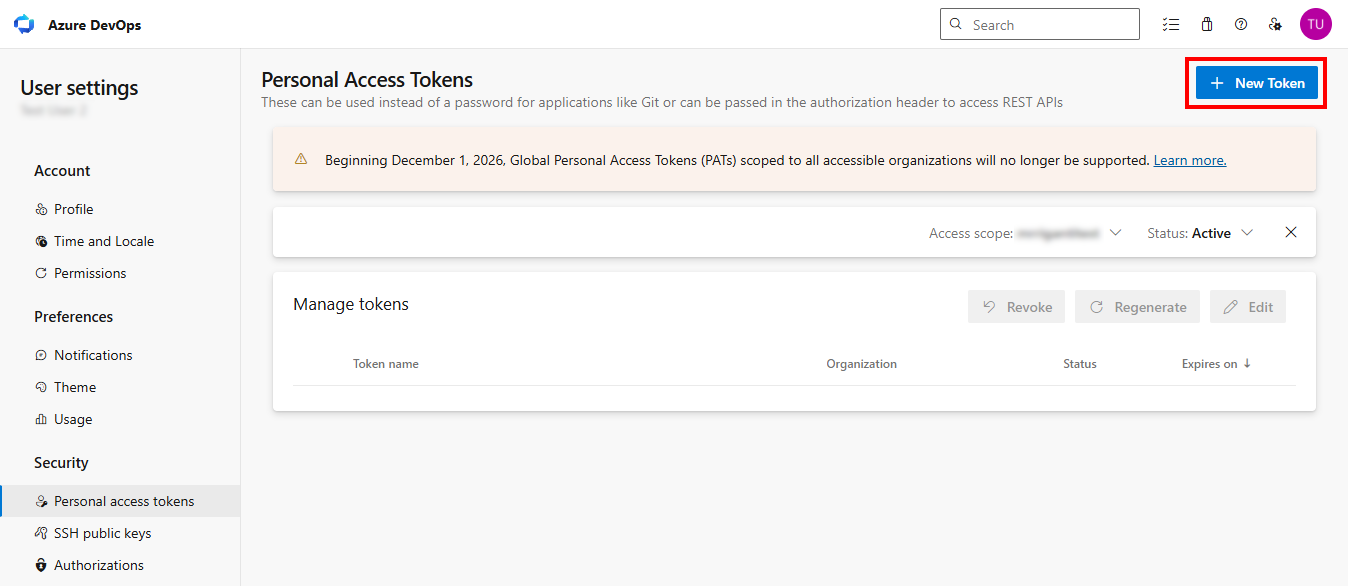
- Click on the New Token button.
- Click on the Show all scopes button.
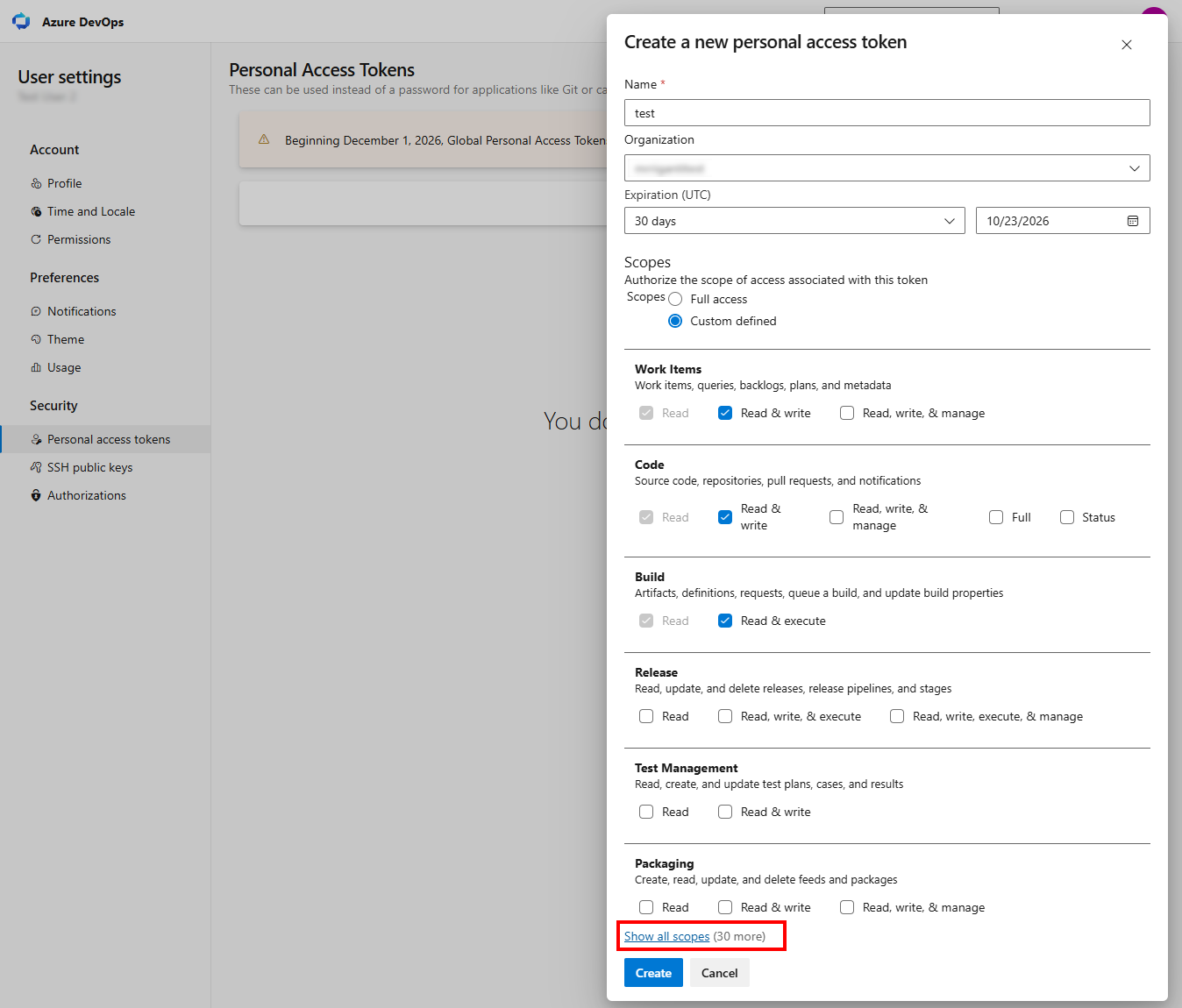
- Select the following scopes:
Agent Pools (Read & Manage),
Build (Read & Execute),
Code (Read & Write),
Identity (Read),
Notification (Read, Write & Manage),
Work Items (Read & Write),
and confirm the choice. - Copy the generated token.
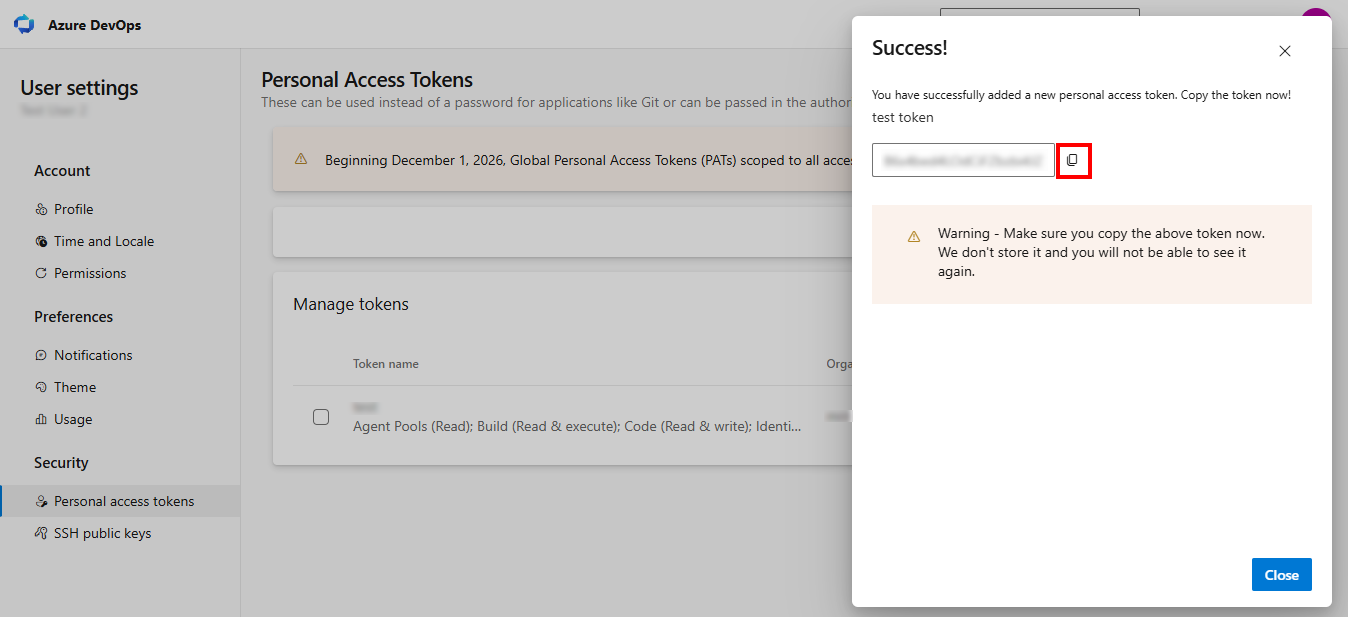
- Paste it into the Personal Access Token field in the Mr. RIGANTI web application.
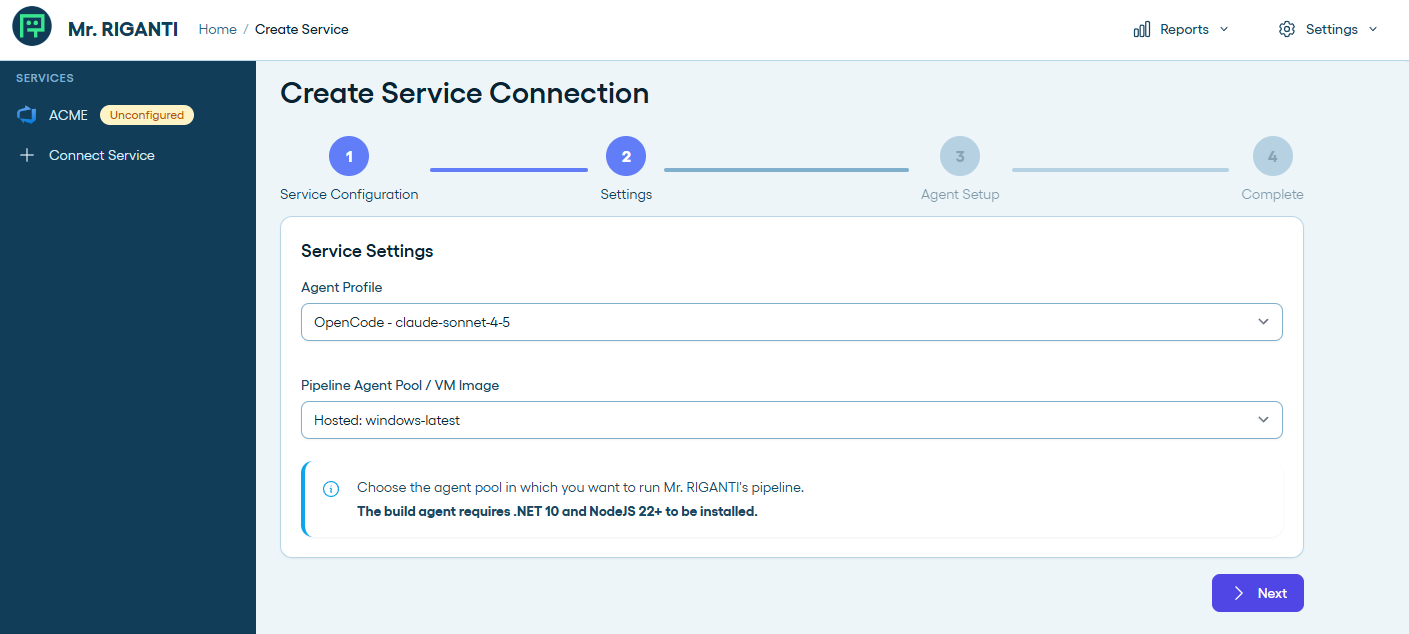
Service Settings Step
In step 2, you can configure the default coding agent and model, and the agent pool in which the coding agent is supposed to run. You will be able to change these values later.
If you plan to use self-hosted agents, make sure they have .NET 10 and Node JS 22+ installed.
Agent User Step
Next, you will need to perform several steps:
- Create a new user that will act as the agent.
For the best experience, name him "Mr. RIGANTI" and assign him his avatar: (click to download)

- Assign him an Azure DevOps Basic license.
- Grant him access to projects you want him to work with.
Same as in the previous step, you have two options:
- Option 1: Sign in as Agent User
- Option 2: Enter Agent User PATs (Personal Access Tokens) manually
Before you proceed, indicate that the agent user account is ready.
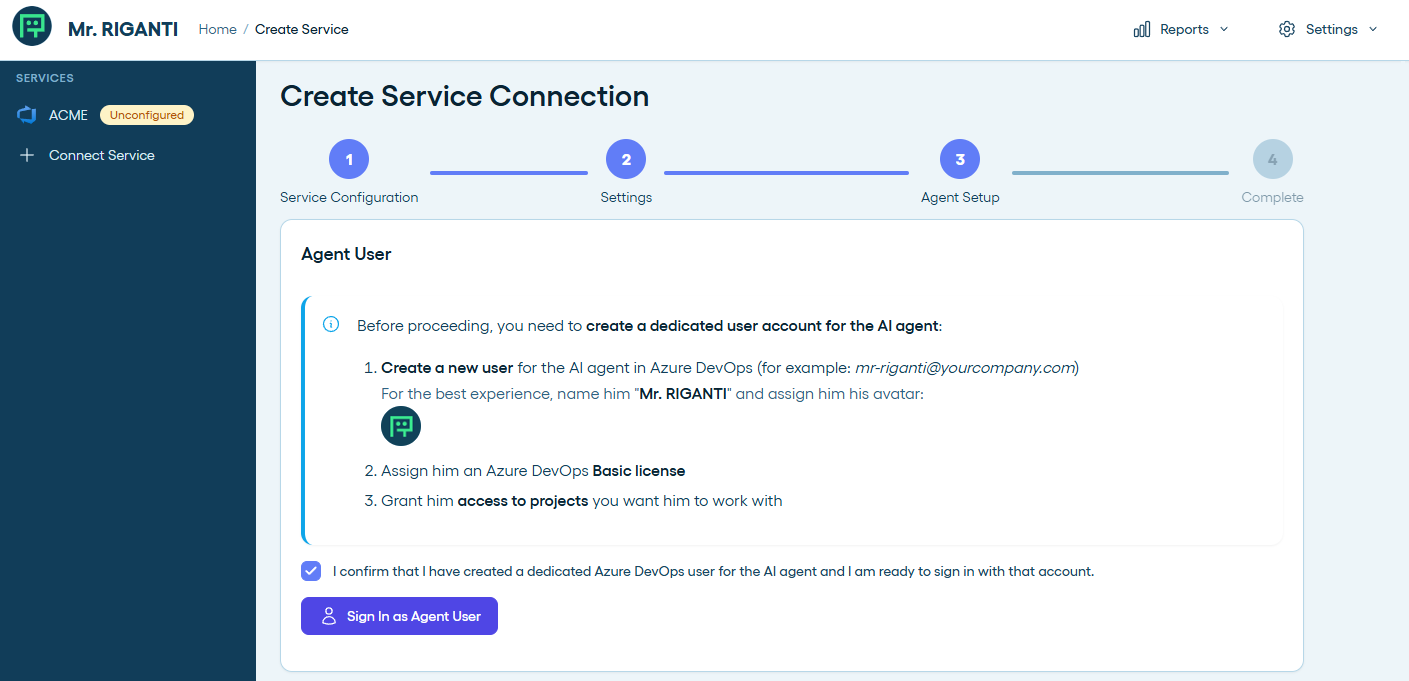
Option 1: Sign in as Agent User
Click on the Sign In as Agent User button. A pop-up window will appear prompting you to enter the agent user's credentials.
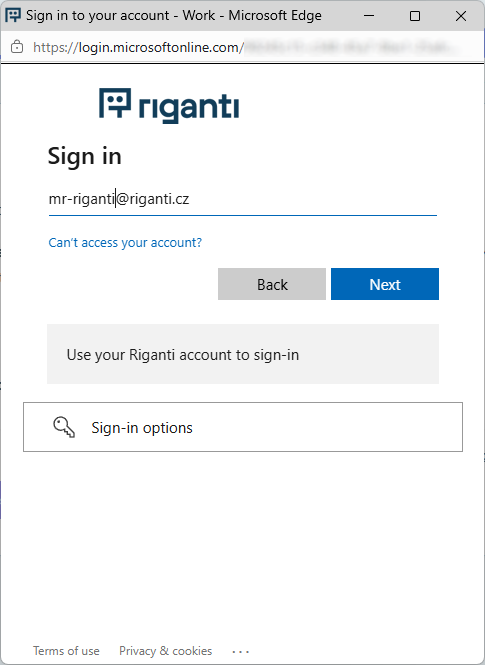
After successful authentication, the service will automatically create a connection to your Azure DevOps instance and generate the necessary PATs for the agent user (transition to Azure Entra ID tokens is coming soon).
Option 2: Enter Agent User PATs (Personal Access Tokens) manually
- Open a new anonymous browser tab and navigate to your Azure DevOps organization.
- Sign in as the agent user.
- Click on the icon next to your profile picture in the top right corner and select the Personal Access Tokens option.
- Click on the New Token button.
- Click on the Show all scopes button.
- Select the following scopes:
Build (Read & Execute),
Code (Read & Write),
Identity (Read),
Work Items (Read & Write),
and confirm the choice. - Copy the generated token.
- Paste it into the Personal Access Token field in the Mr. RIGANTI web application.
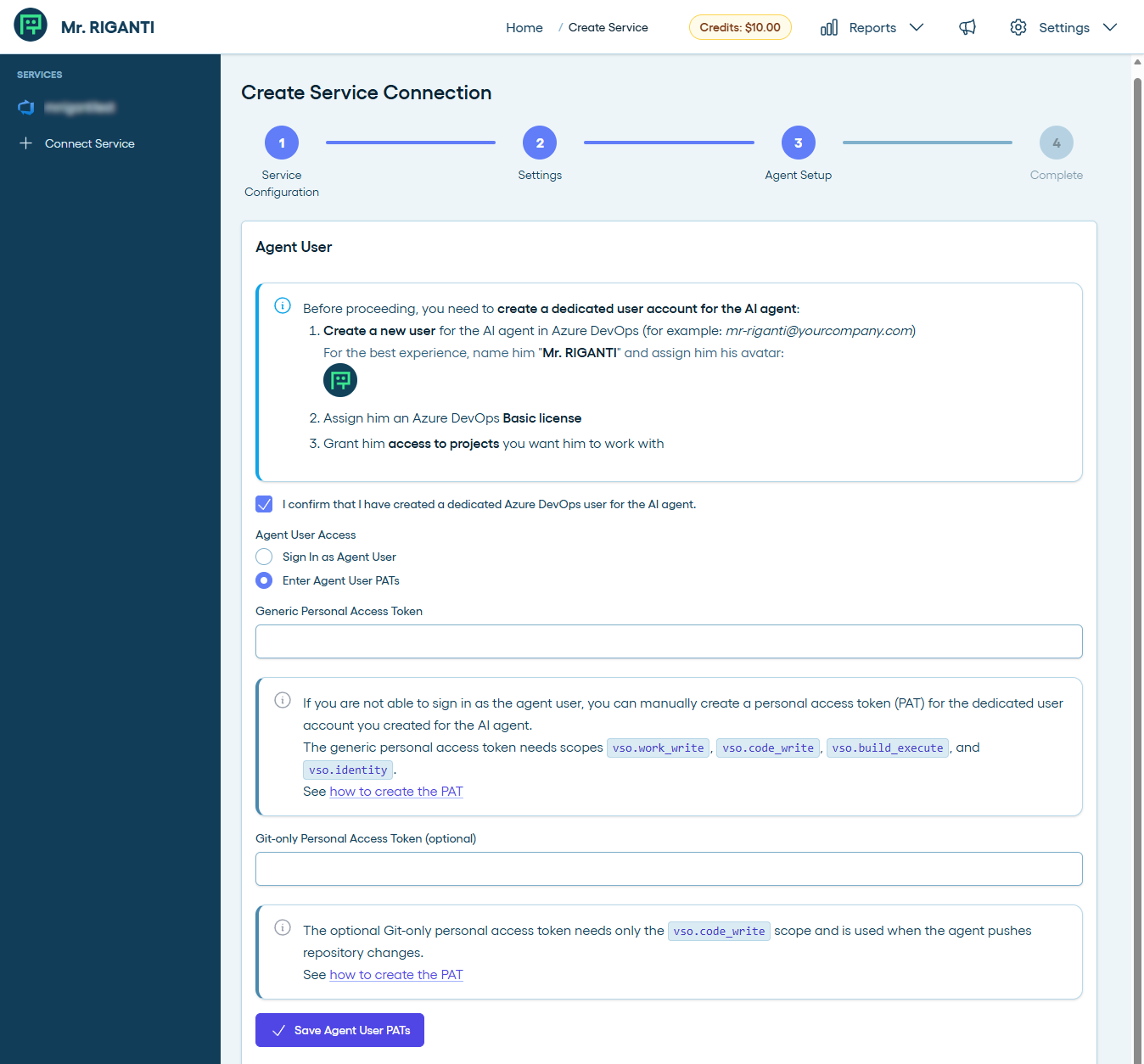
- Return to the Azure DevOps.
- Use the same approach to create a second Personal Access Token with the following scope:
Code (Read & Write). - Paste it into the Git-only Personal Access Token field in the Mr. RIGANTI web application.
Finish the configuration
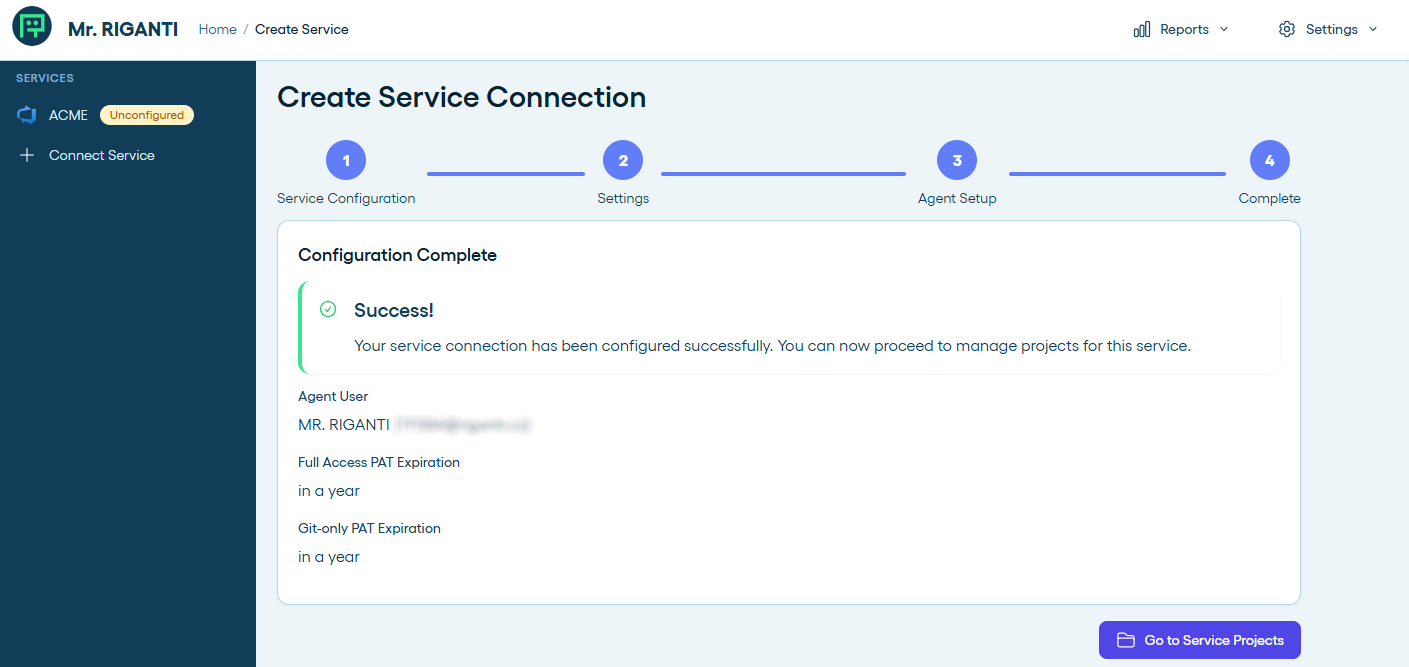
Congratulations! You have successfully connected your Azure DevOps instance to Mr. RIGANTI. You can now onboard him in your Azure DevOps projects!